
Picking back up from certificate installation, lets take inventory of our routers:
| Hostname | System IP | Username | Password |
| 8000v-1 | 1.1.1.40 | admin | Cisco |
| 8000v-2 | 1.1.1.50 | admin | Cisco |
| 8000v-3 | 1.1.1.60 | admin | Cisco |
| 8000v-4 | 1.1.1.70 | admin | Cisco |
Bootup the first 8000v and type the following to bring the router into controller mode:
controller-mode enable
After it reboots, type the following to make sure its in controller-managed mode (controller-managed)
show version | i operating
This should reflect controller mode.
From there, lets put the basic configs on the first router
Here is the bootstrap config I will use:
8000v-1
config-transactionhostname 8000v-1systemsystem-ip 1.1.1.40site-id 100organization-name Chickenhawkvbond 10.1.1.10interface GigabitEthernet1ip address 10.1.1.40 255.255.255.0no shutdowninterface Tunnel1ip unnumbered GigabitEthernet1tunnel source GigabitEthernet1
Now we need to set color on the interface:
sdwaninterface GigabitEthernet1tunnel-interfacecolor biz-internetencapsulation ipsecallow-service sshdallow-service all exitcommit
8000v-2
config-transactionhostname 8000v-2systemsystem-ip 1.1.1.50site-id 100organization-name Chickenhawkvbond 10.1.1.10interface GigabitEthernet1ip address 10.1.1.50 255.255.255.0no shutdowninterface Tunnel1ip unnumbered GigabitEthernet1tunnel source GigabitEthernet1tunnel mode sdwan
Now we need to set color on the interface:
sdwaninterface GigabitEthernet1tunnel-interfacecolor custom1encapsulation ipsecallow-service sshdallow-service allexitcommit
8000v-3
config-transactionhostname 8000v-3systemsystem-ip 1.1.1.60site-id 100organization-name Chickenhawkvbond 10.1.1.10interface GigabitEthernet1ip address 10.1.1.60 255.255.255.0no shutdowninterface Tunnel1ip unnumbered GigabitEthernet1tunnel source GigabitEthernet1tunnel mode sdwan
Now we need to set color on the interface:
sdwaninterface GigabitEthernet1tunnel-interfacecolor custom2encapsulation ipsecallow-service sshdallow-service allexitcommit
8000v-4
config-transactionhostname 8000v-4systemsystem-ip 1.1.1.70site-id 100organization-name Chickenhawkvbond 10.1.1.10interface GigabitEthernet1ip address 10.1.1.70 255.255.255.0no shutdowninterface Tunnel1ip unnumbered GigabitEthernet1tunnel source GigabitEthernet1tunnel mode sdwan
Now we need to set color on the interface:
sdwaninterface GigabitEthernet1tunnel-interfacecolor custom3encapsulation ipsecallow-service sshdallow-service all exitcommit
Copy the ROOTCA.pem to each 8000v-1, 8000v-2, 8000v-3, 8000v-4,
copy scp://admin@10.1.1.10:/ROOTCA.pem ROOTCA.pem
Now install the certificate:
request platform software sdwan root-cert-chain install bootflash:ROOTCA.pemcommit
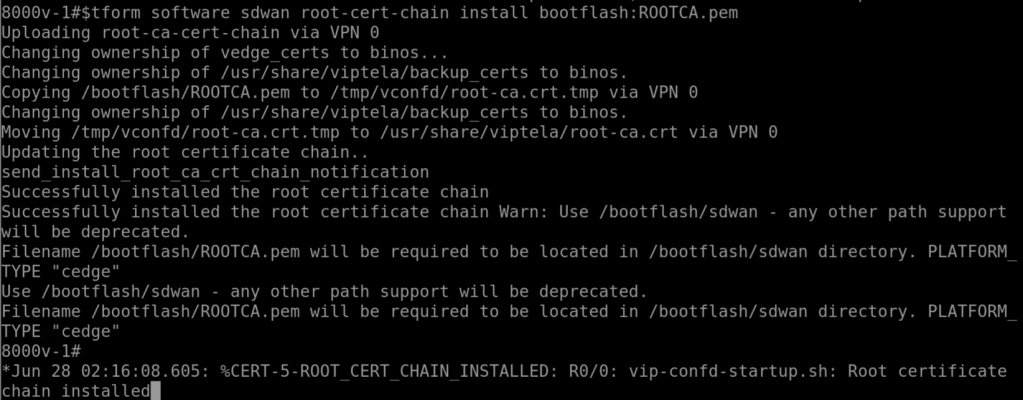
Now check that it is installed for each 8000v-1, 8000v-2, 8000v-3, 8000v-4,
show sdwan certificate root-ca-cert
Open the Cisco Catalyst SD-WAN Manager GUI. Go to Configuration > Devices > WAN Edges which brings to this page. Click on “Upload WAN Edge List”.
Upload the .viptela file from earlier:
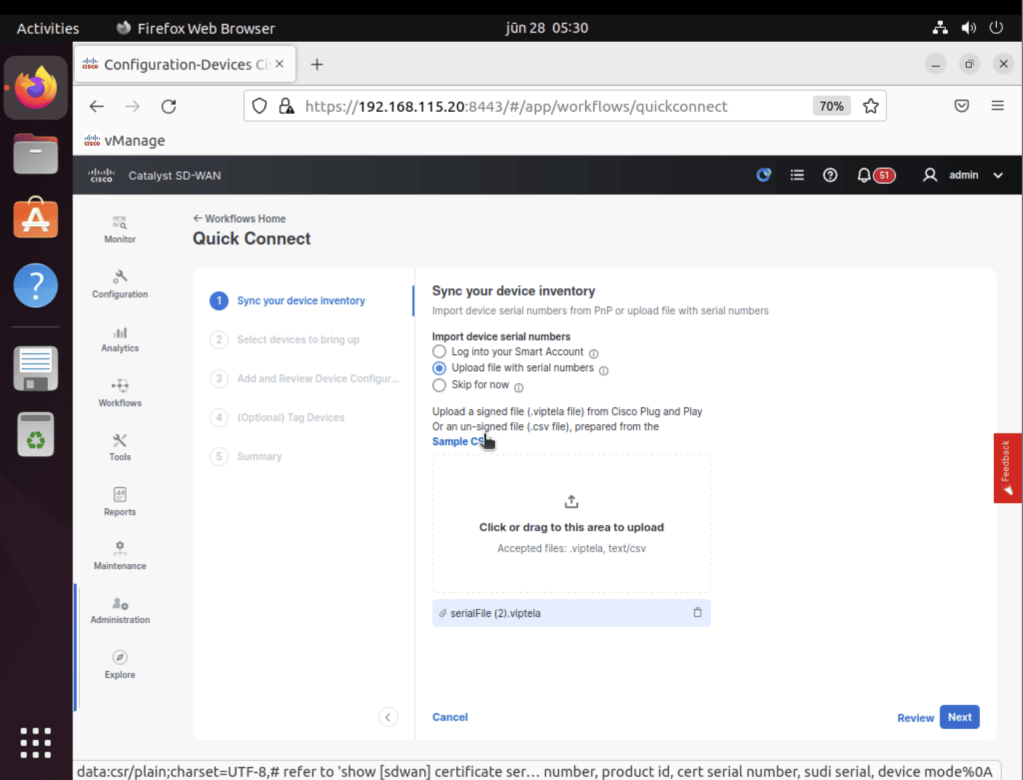
Next
Remember to change the Hostname and System-IP at the Add and Review page:
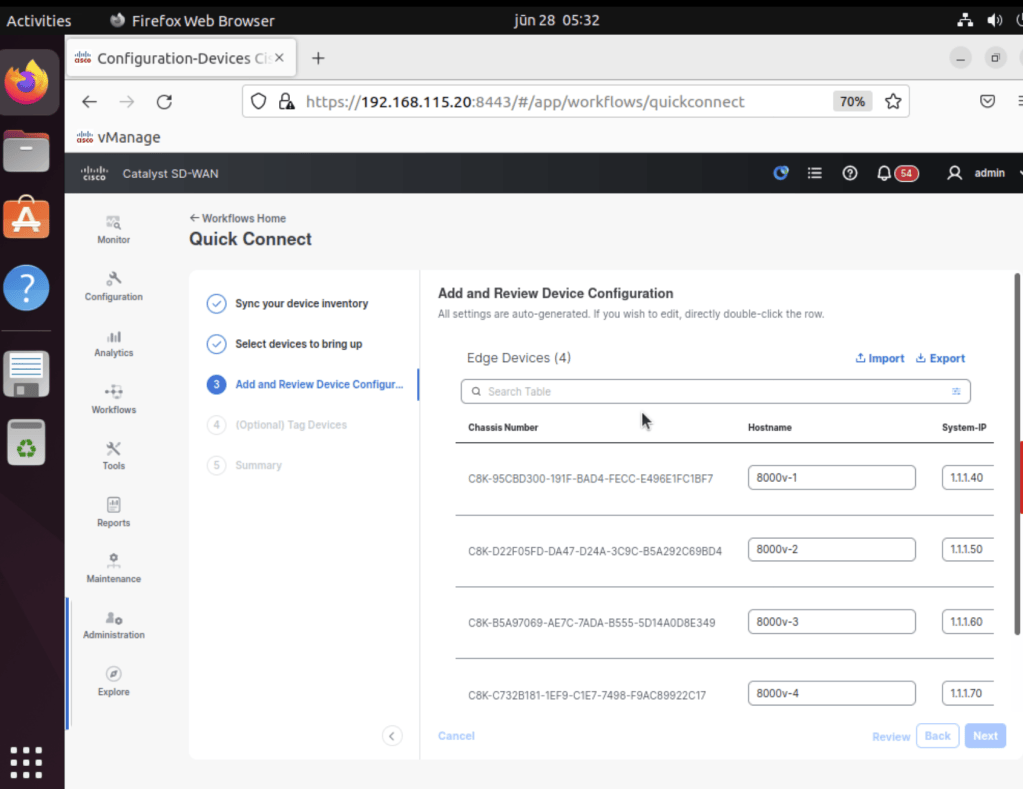
After this is done the bootstrap file is created, go to Configuration > Devices > WAN Edges. Pick the device you would like to onboard. On the action column, there is three dots (…), click on it and choose “Generate Bootstrap Configuration”
Now take note of the output of the file once you’ve generated the bootstrap. Copy the uuid and otp somewhere like notepad :
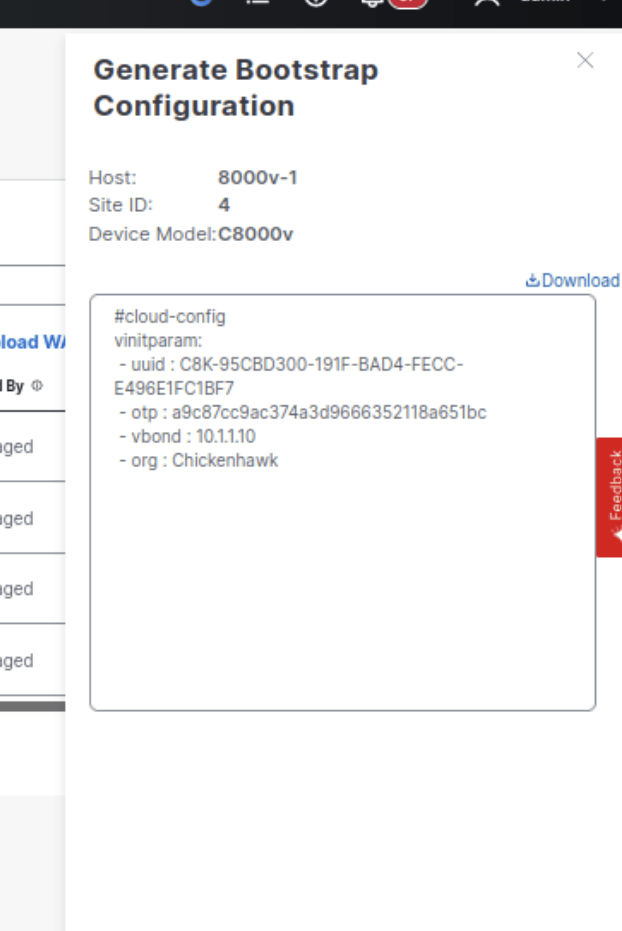
now use the following command to onboard:
request platform software sdwan vedge_cloud activate chassis-number <uuid/chassis number> token <token/opt>.
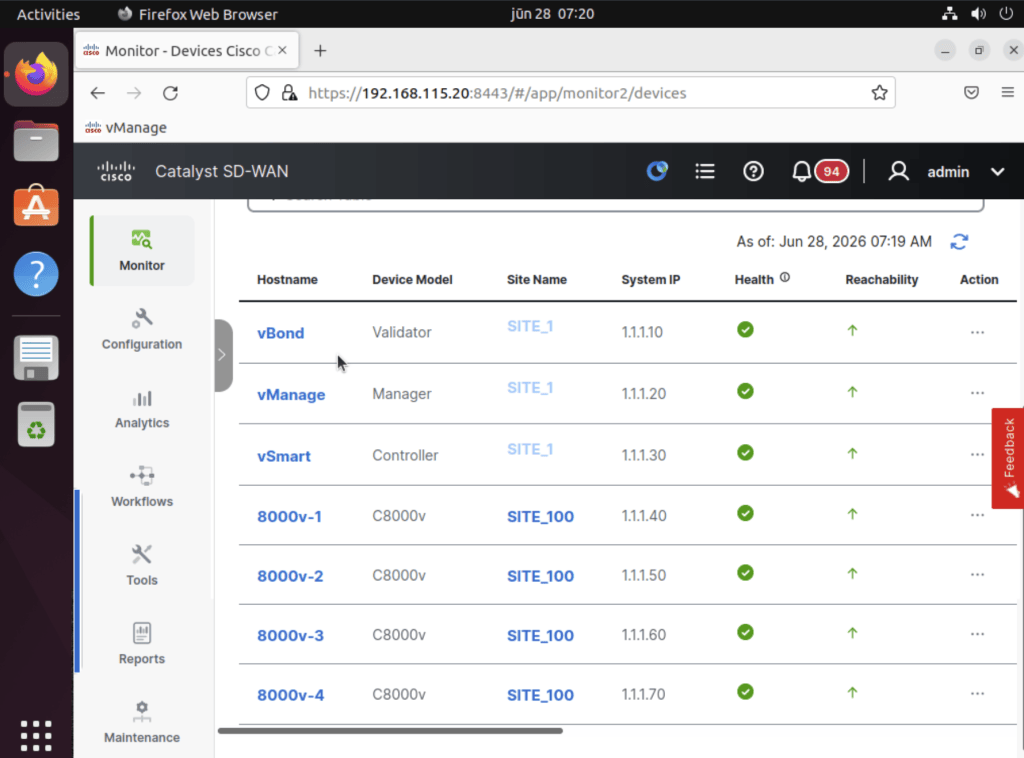
Lets pause and take a moment to see where we are at, we have all 3 controllers and 4 routers onboarded showing green health:


Leave a comment